The ergonomic dual-monitor setup
Two screens double your workspace and, done carelessly, double the ways to hurt your neck. The fix is geometry, not willpower: get the height, distance and angle right, then decide which screen your body actually points at.
At a glance
| Product | Best for | Price | Warranty |
|---|---|---|---|
| Duo Dual-Monitor Riser | Wide shelf for two screens | € 74.95 | 2 years |
| Arc Dual Monitor Arm | Two screens, one clamp | € 129.95 | 2 years |
| Arc Single Monitor Arm | Gas-spring, full motion | € 79.95 | 2 years |
| Glide Gas-Spring Arm | Ultrawide-ready | € 89.95 | 2 years |
| Flow Desk Pad (Large) | 80×40 cm, water-resistant | € 29.95 | 2 years |
| Port 8-in-1 USB-C Dock | One cable, every port | € 69.95 | 2 years |
| Nook Under-Desk Cable Tray | Steel mesh, clamp mount | € 27.95 | 2 years |
| Lumina Monitor Light Bar | Screen-safe, no glare | € 64.95 | 2 years |
| Beam Pro Light Bar | Wireless remote | € 79.95 | 2 years |
Why a second screen changes the ergonomic maths
A single monitor is easy: put it straight ahead, top of the screen at or just below eye height, roughly an arm's length away. Add a second screen and the tidy symmetry hides a trap. If you split two monitors evenly with the seam dead centre, your most-used window often ends up on one side, so you spend the day with your neck rotated a few degrees to the left or right. That small, sustained twist is what aches by four in the afternoon, not the occasional big turn. So the first decision is not where the monitors go but how you use them. Be honest about your split. If you live in one screen (a code editor, a spreadsheet, a document) and glance at the other for reference, chat or email, you have a primary-plus-secondary setup. If you genuinely work across both equally — two documents side by side, editing while previewing — you have a symmetric setup. These two cases want different layouts, and copying the wrong one is the single most common dual-monitor mistake.
Primary-plus-secondary: point your body at the screen you use most
For the asymmetric case, treat the busy screen as your only screen. Place it squarely in front of you: centred on your nose, top edge at or slightly below eye level, tilted back about 10 to 20 degrees so the surface faces your eyes rather than the ceiling, and set at roughly an arm's length so you can read comfortably without leaning in. Your keyboard, mouse and chair all line up with this one. The secondary screen then sits just off to your dominant side, angled inward maybe 30 degrees so it curves toward you like the second panel of a book. You turn your eyes and head to it briefly, then return to neutral. Because you spend most of the day facing forward, the occasional glance costs nothing. The mistake is putting the important screen off-centre and the reference screen straight ahead — you end up permanently twisted toward the work that matters.
Symmetric: build a shallow arc and sit on the seam
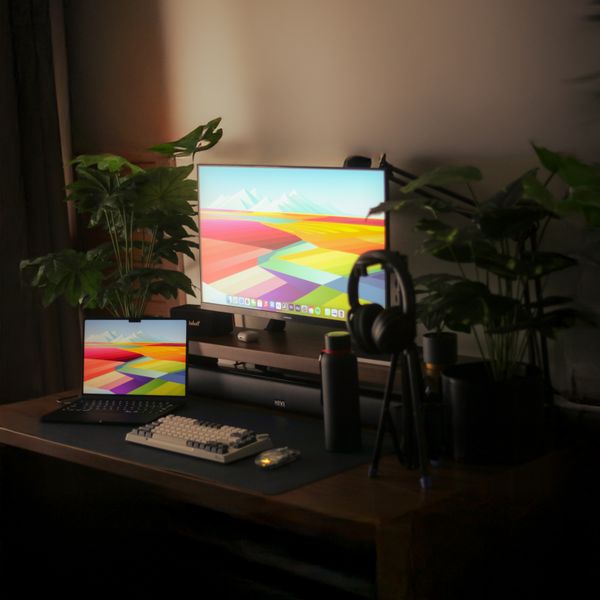
When both screens carry equal load, centre yourself on the gap between them and angle each monitor inward so the two form a gentle arc wrapping around your head. Aim for the inner edges nearly touching and the outer edges swung toward you; a good check is that when you look straight ahead you see the bezels of both screens at the edges of your vision. Keep both tops at the same height and the same distance, so your eyes never have to refocus as you move between them. Matching height is where desks quietly fail you. Two monitors resting on their factory stands are rarely the same height, and neither may reach eye level. Lifting them onto a shared shelf is the simplest fix, and the Duo Dual-Monitor Riser (74.95) gives both screens one level surface with clearance underneath for a keyboard or clutter. For finer control — independent height, tilt, swivel and depth per screen, plus a clear desk you can wipe down — a dual arm is worth it. The Arc Dual Monitor Arm (129.95) clamps to the desk edge, takes two VESA 75/100 displays on gas-spring joints, and lets you nudge each screen into the arc without stacking books under a stand. If your two monitors differ in size or you want to mix a screen with a laptop, two independent arms give more freedom than a fixed crossbar: pair the Arc Single Monitor Arm (79.95) with the Glide Gas-Spring Arm (89.95) and set each to its own height.
Duo Dual-Monitor Riser
Wide shelf for two screens
Arc Dual Monitor Arm
Two screens, one clamp

Arc Single Monitor Arm
Gas-spring, full motion

Glide Gas-Spring Arm
Ultrawide-ready
Height, distance and tilt: the numbers that actually matter
Whatever the layout, the same targets apply to each screen. Height: sit up straight, look ahead with your chin level, and your eyes should land on the top third of the screen — so the top edge is at or just below eye level. If you wear varifocals or progressive lenses you'll naturally tip your head back to find the reading zone, so drop the screens a few centimetres lower than the rule suggests. Distance: about an arm's length, 50 to 70 cm for most people; if the text feels small, increase the font or scaling rather than dragging the monitor closer. Tilt: lean the top of each screen away from you by roughly 10 to 20 degrees so you're looking at the display straight-on. Curved monitors help the symmetric case because the panel already bends toward you, but they aren't required — angling two flat screens inward achieves the same thing. One quick self-test: work for twenty minutes, then notice your neutral resting position. If your head has drifted to one side or your chin is poking forward, the busy content is in the wrong place or the screens are too low. Move the pixels, not your spine. None of this is medical advice; if you have persistent neck, shoulder or eye pain, see a professional.
The body under the screens: chair, hands and cables
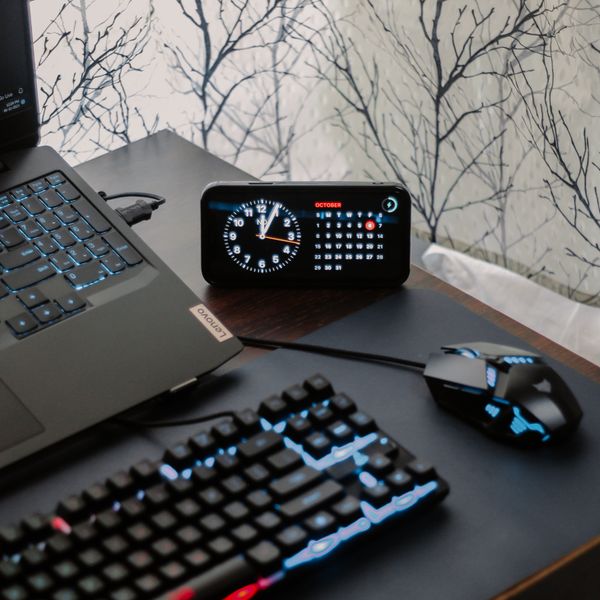
Screen geometry only pays off if the rest of your posture cooperates. Your chair sets your eye height, so fix seating first: feet flat, thighs roughly level, lower back supported, elbows near 90 degrees. Keyboard and mouse belong directly in front of your sternum and aligned with your primary screen — if you've centred your body on the busy monitor, centre your input devices there too, not on the physical middle of the desk. A large desk pad like the Flow Desk Pad (29.95) gives you one continuous surface to slide a mouse across without hunting for a mousepad edge. Two screens also mean more cables and, usually, more ports than a laptop has. Running both displays plus power, keyboard and mouse through a single cable keeps the desk calm and lets you undock in one pull; the Port 8-in-1 USB-C Dock (69.95) drives dual external displays and charges the laptop over one connection. Tidy the resulting spaghetti under the desk with a clamp-mounted tray such as the Nook Under-Desk Cable Tray (27.95) so nothing drags on your knees or tugs a monitor out of alignment.

Flow Desk Pad (Large)
80×40 cm, water-resistant
Port 8-in-1 USB-C Dock
One cable, every port

Nook Under-Desk Cable Tray
Steel mesh, clamp mount
Lighting: kill the glare before it doubles
Two screens present two reflective surfaces at slightly different angles, which makes overhead lights and windows twice as likely to bounce something into your eyes. Position the pair perpendicular to any window rather than facing it or backing onto it, so daylight rakes across the desk instead of glaring off the panels or silhouetting them. Then light the paperwork and keyboard, not the screens. A screen-mounted light bar is the neat solution here because it clips to the top of a monitor, throws light down onto the desk, and puts nothing bright in your field of view or on the glass. The Lumina Monitor Light Bar (64.95) sits on the top edge without reflecting into the screen and shifts from warm to cool as the day changes; the wider Beam Pro Light Bar (79.95) covers more desk if your two screens make for a broad working surface. Match the colour temperature to the room — cooler and brighter by day, warmer in the evening — so your eyes aren't fighting a bluish glow against a dark room at night.

Lumina Monitor Light Bar
Screen-safe, no glare

Beam Pro Light Bar
Wireless remote
FAQ
Should I use a monitor arm or a riser for two screens?
Both solve height, which is the main thing. A dual riser is simplest and cheapest, gives one shared level surface and storage underneath, and suits screens of similar size. A dual arm costs more but lets you set each screen's height, tilt, swivel and distance independently, frees the whole desk for wiping down, and handles mismatched monitor sizes far better. If your two displays differ or you want a precise inward arc, choose arms.
Which monitor should be my primary?
The one you look at most, not necessarily the bigger or nicer one. Put that screen directly in front of your nose and align your chair, keyboard and mouse to it. The other becomes the secondary, angled in on your dominant side for glances. Setting your operating system's primary display to match — taskbar, dock and new windows on the centred screen — reinforces the habit so your body stays facing forward.
Do both monitors need to be exactly the same height?
For a symmetric setup where you work across both equally, yes — matching height and distance means your eyes never refocus and your neck never dips as you move between them, which is exactly what mismatched factory stands prevent. For a primary-plus-secondary setup it matters less, since you spend little time on the secondary, though keeping them close still feels more restful.
Is a single ultrawide better than two monitors?
Ergonomically an ultrawide has one real advantage: no central bezel to work around, and a curve that already wraps toward you. But you lose the ability to set two screens at different heights or angles, and one giant panel can push content out to the far edges where you crane to read it. Two monitors give more layout freedom; an ultrawide gives a cleaner, seam-free centre. Neither is wrong — it comes down to whether your work lives in the middle or spreads wide.